|
|
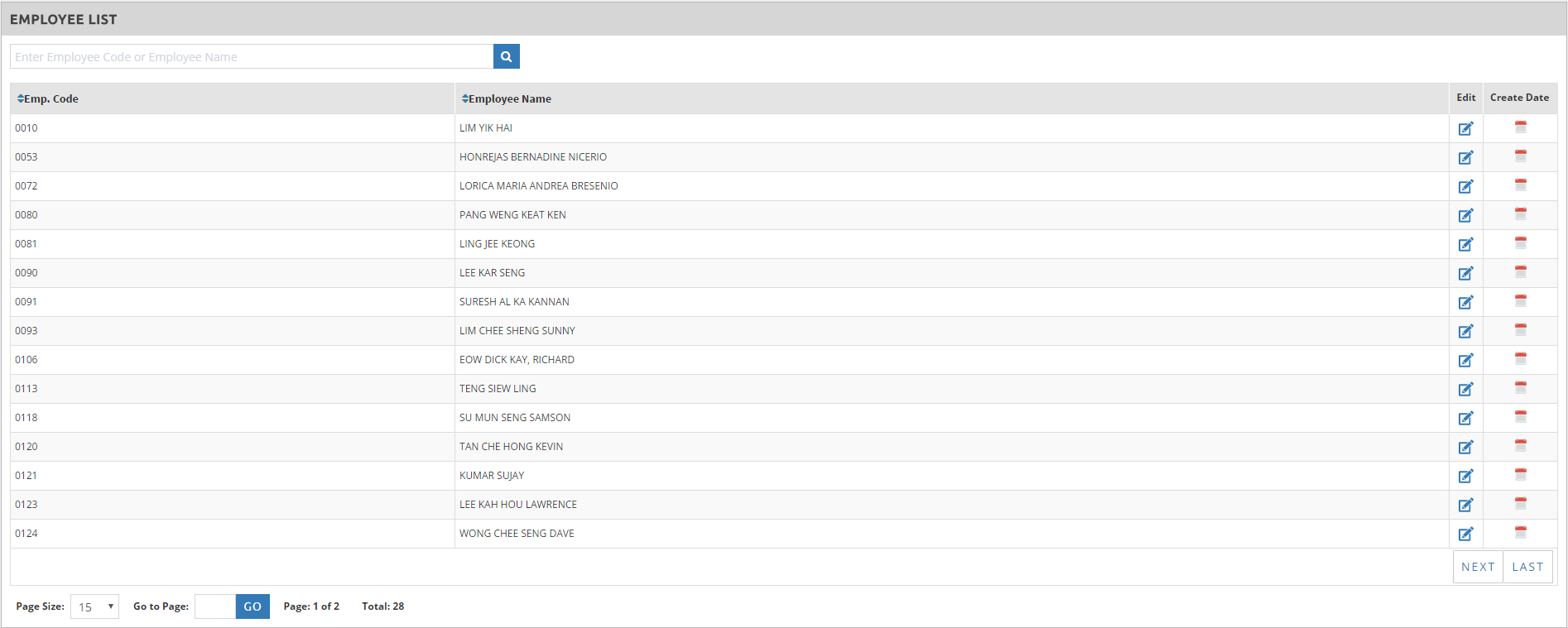
✓Go to Transaction > Update by Individual > click the
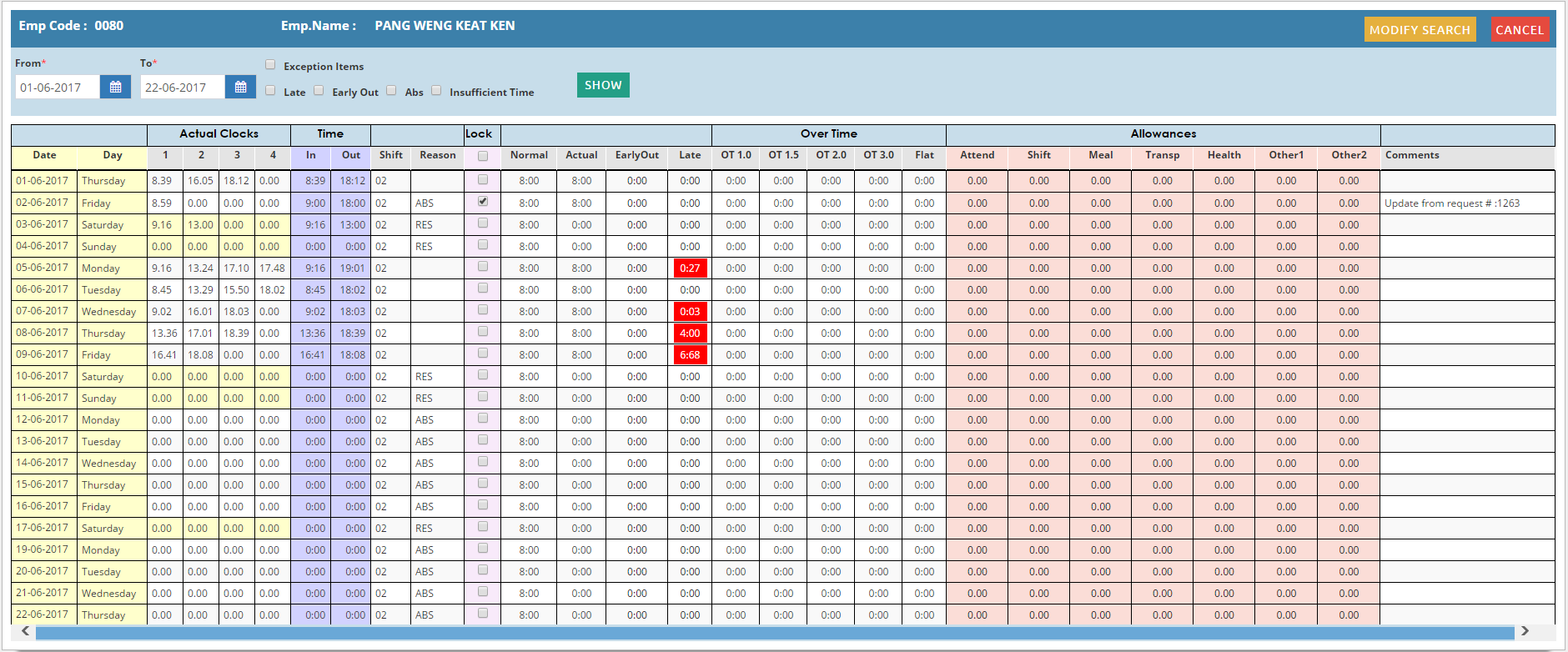
✓The page will display the current month attendance records ✓Click on ✓Enter From and To dates that you want to view and click
✓Tick on the Exception Items (Late, Early Out, Abs, Insufficient Time) to filter the view
Actual Clocks 1 | 2 | 3 | 4 – displays the actual clocking for the day Time In | Out – first and last clocking for the day Shift – assigned shift to the employee for that day. It can be based from the Working Shift / Auto Shift / Duty Roster / Employee Schedule assigned in the employee profile Reason – this will display the reason or type for the day Lock – tick to lock the attendance record for the day, which means it will not be disturbed if you will do a Recalculate Attendance or Purge and Reprocess Normal – Working Hours specified in the shift, inclusive of the Lateness and Under time (early out), if any. Actual - The actual working hours done by the employee for the day, inclusive of Lateness, Under Time and OT values, if any. Early Out – The total number of hours the employee left earlier than the official Time Out for that day Late - The total number of hours the employee has come in to work after the official Time In for that day Over Time 1.0 | 1.5 | 2.0 | 3.0 | Flat – The total number of hours that the employee has worked outside the official time in and out. The number of hours will be displayed under the appropriate column based on the shift settings or OT Preset Allowances – this will display the allowance amount based on the allowance settings assigned under staff allowance Comments – will display the remarks regarding the attendance/OT request done by the employee
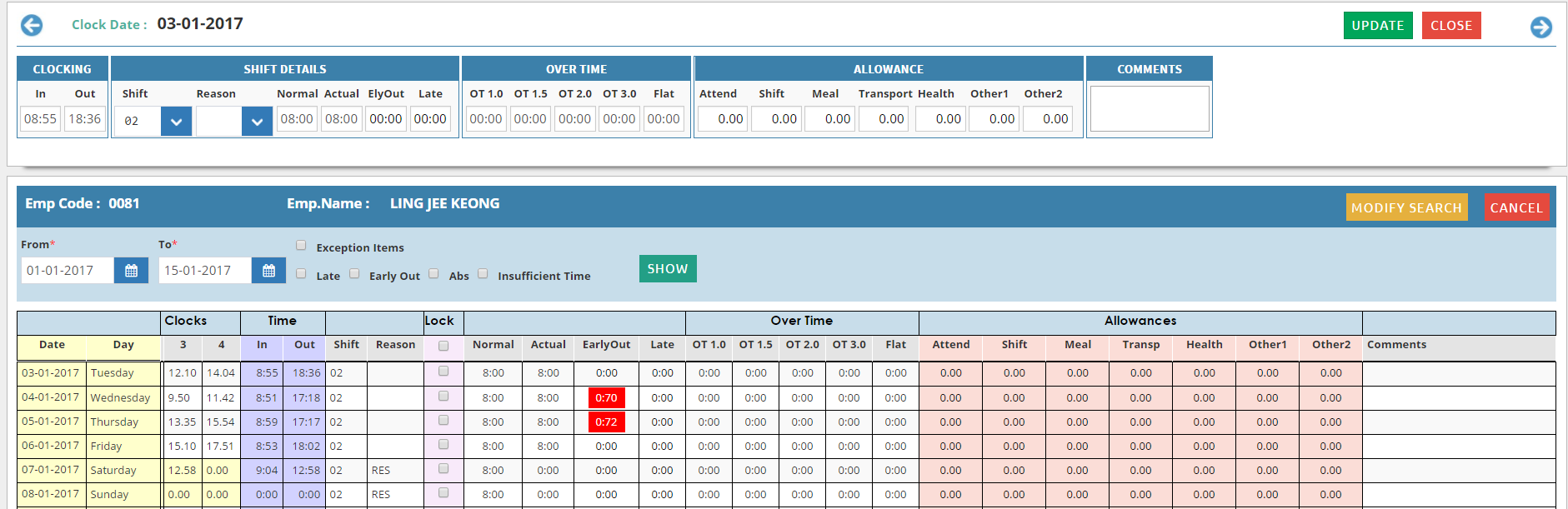
✓Click on the row of the specific date you want to edit > edit window will appear on top of the page
✓Enter the necessary changes needed > click **Note: You are only allowed to modify from Time In column onwards.
|